I've done it! Upgraded my blog from Blogger to the WordPress site I've had for years, jumping 20 years into the future. Check out https://calafell.me/ and delete your shortcut to https://dynamicsax365trix.blogspot.com/.
Cheers!
Showing posts with label AX 2012. Show all posts
Showing posts with label AX 2012. Show all posts
Saturday, September 29, 2018

Tuesday, September 11, 2018
Debug AIF Document Service within AX
Sometimes it is a pain to create a .NET application and attach a debugger to the AOS service just to diagnose a problem with an AIF service. It is possible to do all debugging inside of AX. This example is for a standard AIF document service, however, you can also do the same for a custom service in a way which is even easier.
As a prerequisite, the inbound port must have document version logging enabled. If not, deactivate it, enable logging, then activate it.
1. Find the exception and its message ID
/System administration/Periodic/Services and Application Integration Framework/Exceptions
Save the Message ID from this screen.
2. Get XML from AIF history
/System administration/Periodic/Services and Application Integration Framework/History
Filter on the Message ID, click "Document Logs" then save the document.

3. Modify XML to remove the entity key list, and keep the key because it is needed in the job.

4. Create a job for debugging
static void testAifXml(Args _args)
{
#file
AifEntityKey aifEntityKey;
AxdSalesOrder axdSalesOrder;
FileName fileName = @"\\a\b\c\4BA32F0A-F7FC-46FD-8DB0-ABB04A6F4ECE.xml";
Map map;
XmlDocument xmlDocument;
map = new Map(Types::Integer, Types::Container);
map.insert(fieldNum(SalesTable, SalesId), ['SO000037']);
aifEntityKey = new AifEntityKey();
aifEntityKey.parmTableId(tableNum(SalesTable));
aifEntityKey.parmKeyDataMap(map);
new FileIoPermission(fileName, #io_read).assert();
xmlDocument = XmlDocument::newFile(fileName);
CodeAccessPermission::revertAssert();
axdSalesOrder = new AxdSalesOrder();
axdSalesOrder.update(aifEntityKey, xmlDocument.xml(), new AifEndPointActionPolicyInfo(), new AifConstraintList());
info("Done");
}
As a prerequisite, the inbound port must have document version logging enabled. If not, deactivate it, enable logging, then activate it.
1. Find the exception and its message ID
/System administration/Periodic/Services and Application Integration Framework/Exceptions
Save the Message ID from this screen.
2. Get XML from AIF history
/System administration/Periodic/Services and Application Integration Framework/History
Filter on the Message ID, click "Document Logs" then save the document.

3. Modify XML to remove the entity key list, and keep the key because it is needed in the job.

4. Create a job for debugging
static void testAifXml(Args _args)
{
#file
AifEntityKey aifEntityKey;
AxdSalesOrder axdSalesOrder;
FileName fileName = @"\\a\b\c\4BA32F0A-F7FC-46FD-8DB0-ABB04A6F4ECE.xml";
Map map;
XmlDocument xmlDocument;
map = new Map(Types::Integer, Types::Container);
map.insert(fieldNum(SalesTable, SalesId), ['SO000037']);
aifEntityKey = new AifEntityKey();
aifEntityKey.parmTableId(tableNum(SalesTable));
aifEntityKey.parmKeyDataMap(map);
new FileIoPermission(fileName, #io_read).assert();
xmlDocument = XmlDocument::newFile(fileName);
CodeAccessPermission::revertAssert();
axdSalesOrder = new AxdSalesOrder();
axdSalesOrder.update(aifEntityKey, xmlDocument.xml(), new AifEndPointActionPolicyInfo(), new AifConstraintList());
info("Done");
}
Thursday, September 6, 2018
Validate AX DLL Versions on Multiple Machines
List the versions for all DLLs which will load in AX using the Get-AxDllVersions. Download the PowerShell script. Run this script against all machines running the AX client (RDP/Citrix/end-user) and servers. This is useful to confirm that all DLLs deployed match in file version.
Example 1: Export DLL Versions for Local Machine
.\Get-AxDllVersions.ps1
Example single value:
ComputerName : Server1
FileVersion : 6.3.5000.3084
ProductVersion : 6.3.5000.3084
OriginalName : Microsoft.Dynamics.Retail.TestConnector.dll
FilePath : \DAXDEVMCA1\c$\Program Files\Microsoft Dynamics AX\60\Server\Server1\bin\Connectors
FileDescription :
ProductName : Microsoft Dynamics AX Status : Success
Example 2: Retrieving Multiple Server DLL Versions
.\Get-AxDllVersions.ps1 -ComputerName "Server1","Server2"
Example 3: Export Multiple Server DLL Versions to CSV
.\Get-AxDllVersions.ps1 -ComputerName (Get-Content "ComputerList.txt") | Export-csv "c:\temp\AX_DLL_Versions.csv" -NotypeInformation
Requirements
The script must be run as an account having Administrator access all computers. The script will skip any offline/inaccessible computers.
Monday, August 20, 2018
Unable to Enable Warehouse Management II License Key
In AX 2012 R3 CU12, after disabling Trade > Warehouse and Transportation Management the Warehouse Management II license cannot be enabled in License information.

The fix was:
1. Kick out other users
2. Keep AOS online and AX open
3. Backup business data SQL database
4. Run this SQL on business database: DELETE SysConfig WHERE ConfigType IN (0, 1, 2)
5. Open License information in AX
6. Apply Microsoft AX license key, no DB sync
7. Apply any partner licenses, no DB sync
8. Check that Warehouse Management II is check-marked in the license information
8. DB sync
9. Axbuild.exe
10. Full CIL
“You can not add this license code because the following
required license codes have not been entered: Warehouse management I”

1. Kick out other users
2. Keep AOS online and AX open
3. Backup business data SQL database
4. Run this SQL on business database: DELETE SysConfig WHERE ConfigType IN (0, 1, 2)
5. Open License information in AX
6. Apply Microsoft AX license key, no DB sync
7. Apply any partner licenses, no DB sync
8. Check that Warehouse Management II is check-marked in the license information
8. DB sync
9. Axbuild.exe
10. Full CIL
Saturday, July 28, 2018
Data Migration: Combining 105 Excel Files in 3 Minutes
I needed to import multiple Excel files into AX; all of them had a very similar format with the same columns. Python to the rescue. Ever since Build 2018 I've been using Visual Studio Code and enjoyed every moment of it, as I build Python scripts to assist me with anything I can think of. I highly suggest that tool, and the Cobalt2 theme, for increased productivity and debugging- as a gateway drug to Python addiction(!).
This script will combine all of the files within a directory into a file, Combined.xls. Install Python 3 then install xlwt and xlrd using pip. The os module is part of the main Python installation already. Create a python file (*.py) with the following code. Then change the settings to suit your situation as well as the logic for skipping of the header record.
import os
import xlwt
import xlrd
# Settings
directory_path = r'~\Data Migration\RouteOpr'
combined_fullpath = r'~\Data Migration\RouteOpr\Combined.xls'
path_sep = '\\'
import_sheet_name = 'Template'
num_files_to_combine = 99999
print('Combining files in {}'.format(directory_path))
# Create workbook
wkbk = xlwt.Workbook()
outsheet = wkbk.add_sheet('Combined')
# Go through each file and add it to the combined file
outrow_idx = 0
file_num = 0
num_rows_this_file = 0
for root, dirs, files in os.walk(directory_path):
for filename in files:
file_num += 1
if file_num > num_files_to_combine:
break
print('...{}'.format(filename),end='',flush=True)
f = root + path_sep + filename
num_rows_this_file = 0
try:
insheet = xlrd.open_workbook(f).sheet_by_name('Template')
except xlrd.XLRDError as e:
print('ERROR (skipping file): ',end='')
print(e)
continue
for row_idx in range(insheet.nrows):
num_rows_this_file += 1
outrow_idx += 1
# Skip header rows after the first file
if file_num > 1 and row_idx < 10 and (insheet.cell_value(row_idx, 0) in ('AccError','Accumulated') or insheet.cell_value(row_idx, 1) == 'if configured Item will be required.'): # Modify this line to skip any header records
outrow_idx -= 1
continue
for col_idx in range(insheet.ncols):
outsheet.write(outrow_idx, col_idx, insheet.cell_value(row_idx, col_idx))
outsheet.write(outrow_idx, insheet.ncols, filename)
print(' {:,} rows'.format(num_rows_this_file))
#save the file
wkbk.save(combined_fullpath)
print('Saved combined file to {}'.format(combined_fullpath))
print('Files combined successfully')
This script will combine all of the files within a directory into a file, Combined.xls. Install Python 3 then install xlwt and xlrd using pip. The os module is part of the main Python installation already. Create a python file (*.py) with the following code. Then change the settings to suit your situation as well as the logic for skipping of the header record.
import os
import xlwt
import xlrd
# Settings
directory_path = r'~\Data Migration\RouteOpr'
combined_fullpath = r'~\Data Migration\RouteOpr\Combined.xls'
path_sep = '\\'
import_sheet_name = 'Template'
num_files_to_combine = 99999
print('Combining files in {}'.format(directory_path))
# Create workbook
wkbk = xlwt.Workbook()
outsheet = wkbk.add_sheet('Combined')
# Go through each file and add it to the combined file
outrow_idx = 0
file_num = 0
num_rows_this_file = 0
for root, dirs, files in os.walk(directory_path):
for filename in files:
file_num += 1
if file_num > num_files_to_combine:
break
print('...{}'.format(filename),end='',flush=True)
f = root + path_sep + filename
num_rows_this_file = 0
try:
insheet = xlrd.open_workbook(f).sheet_by_name('Template')
except xlrd.XLRDError as e:
print('ERROR (skipping file): ',end='')
print(e)
continue
for row_idx in range(insheet.nrows):
num_rows_this_file += 1
outrow_idx += 1
# Skip header rows after the first file
if file_num > 1 and row_idx < 10 and (insheet.cell_value(row_idx, 0) in ('AccError','Accumulated') or insheet.cell_value(row_idx, 1) == 'if configured Item will be required.'): # Modify this line to skip any header records
outrow_idx -= 1
continue
for col_idx in range(insheet.ncols):
outsheet.write(outrow_idx, col_idx, insheet.cell_value(row_idx, col_idx))
outsheet.write(outrow_idx, insheet.ncols, filename)
print(' {:,} rows'.format(num_rows_this_file))
#save the file
wkbk.save(combined_fullpath)
print('Saved combined file to {}'.format(combined_fullpath))
print('Files combined successfully')
The output will look like -
Combining files in XXXX
Migration\RouteOpr\Test_2018-07-19
...Route Operations Template A.xlsx 298 rows
...Route operations template B.xlsx 282 rows
...Route operations template C.xlsx 173 rows
...Route operations template D.xlsx 1,874 rows
{...}
...Route operations template CD.xlsx 36 rows
Saved combined file to XXXXX\Data Migration\RouteOpr\Test_2018-07-19\Combined.xls
Files
combined successfully
Cheers!
Wednesday, June 27, 2018
The Product variants form can only be opened for a product master
When right-clicking > View Details on a Variant number you may receive the following message "The Product variants form can only be opened for a product master."
Call Stack
Problem
Call Stack
[c] \Data Dictionary\Tables\EcoResProductMaster\Methods\getProductMasterFromCaller 34
[c] \Classes\EcoResProductVariantsCompanyHelper\newFromFormRun 18
[c] \Classes\EcoResProductVariantsFormHelper\newFromFormRun 21
[c] \Forms\EcoResProductVariantsPerCompany\Methods\productVariantsFormHelper 5
[c] \Forms\EcoResProductVariantsPerCompany\Methods\init 3
[c] \Classes\SysSetupFormRun\init 5
[c] \Classes\FormDataObject\jumpRef
[c] \Classes\FormStringControl\jumpRef
[c] \Classes\FormRun\Task
[c] \Classes\SysSetupFormRun\Task 48
[c] \Classes\FormStringControl\Context
Problem
The method \Data Dictionary\Tables\EcoResProductMaster.getProductMasterFromCaller() handles EcoResDistinctProductVariant but not InventDimCombination.
Solution
Add the following code to \Data Dictionary\Tables\EcoResProductMaster.getProductMasterFromCaller()
//coming from the Go to Main Table
if (_args.lookupTable() == tableNum(InventDimCombination))
{
ecoResDistinctProductVariantCaller = EcoResDistinctProductVariant::find(InventDimCombination::findVariantId(_args.lookupValue()).DistinctProductVariant);
callerRecord = EcoResProductMaster::find(ecoResDistinctProductVariantCaller.ProductMaster);
}
Friday, June 8, 2018
Generating Random Numbers and Dates (AX 2012)
The Random class creates random integer values. Although the range of an int (32 bit) is: [-2,147,483,647 : 2,147,483,647], Random.nextInt() generates values from 0 to 32,767, which is an unsigned 16-bit integer. Let's run the Random class to validate the randomness.
The results of generating 1,048,574 random numbers represented as a histogram:

The RandomGenerate class enables you to specify a range for the random numbers. Let's test RandomGenerate.randomInt() method.
Results of generating 1,048,574 random numbers between 0 and 3,000 represented as a histogram:

dateMax() is 12/31/2154 or 93136 as an integer
12/30/2154 is 93135 as an integer, so dates are stored as the number of days since January first of 1900. So we can generate a random date by generating numbers between 0 and 93,136.
Results of generating 1,048,574 random numbers between 0 and 3,000 represented as a histogram:

There isn't an obvious issue. :) I checked and as far as I could tell it did not generate the same numbers over and over, and it can accept a seed:
randomGenerate = RandomGenerate::construct();
randomGenerate.parmSeed(new Random().nextInt());
Keep in mind that the compiler needs to you first assign the output of the function to an integer before casting it to a date:
myInt = randomGen.randomInt(0, 93136);
myDate = dateNull() + myInt; // Convert to date
As long as you are not generating random numbers for cryptography, this implementation should satisfy the requirement. As an alternative, call to the .NET class System.Random or another library.
The results of generating 1,048,574 random numbers represented as a histogram:

The RandomGenerate class enables you to specify a range for the random numbers. Let's test RandomGenerate.randomInt() method.
Results of generating 1,048,574 random numbers between 0 and 3,000 represented as a histogram:
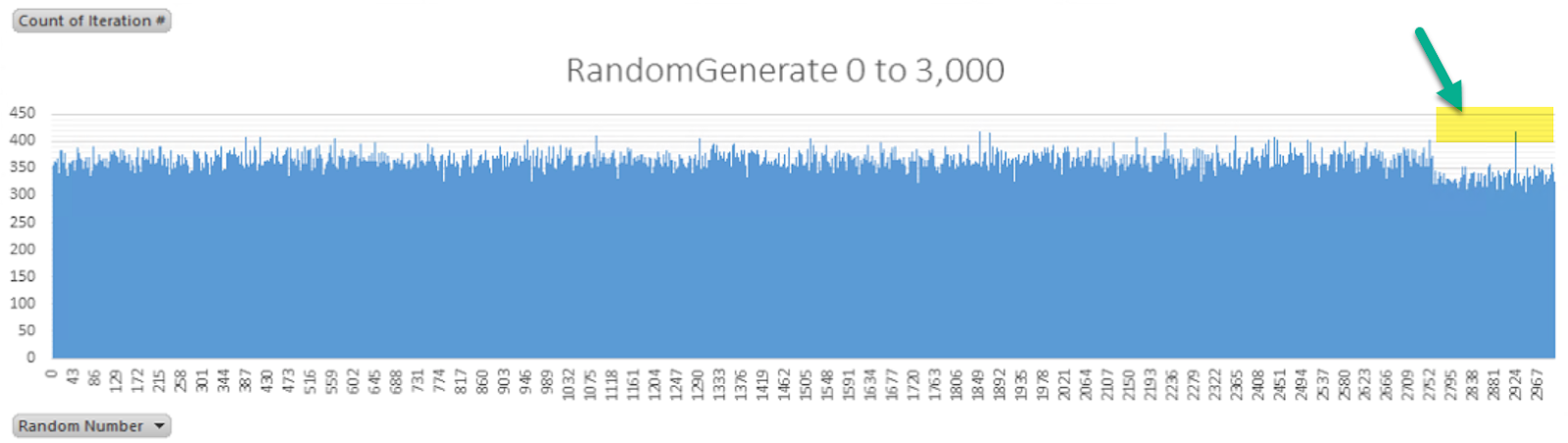
There is an interesting drop off close to the 3,000 mark.
Generating a random date
dateNull() is 1/1/1900 or 0 as an integerdateMax() is 12/31/2154 or 93136 as an integer
12/30/2154 is 93135 as an integer, so dates are stored as the number of days since January first of 1900. So we can generate a random date by generating numbers between 0 and 93,136.
Results of generating 1,048,574 random numbers between 0 and 3,000 represented as a histogram:

There isn't an obvious issue. :) I checked and as far as I could tell it did not generate the same numbers over and over, and it can accept a seed:
randomGenerate = RandomGenerate::construct();
randomGenerate.parmSeed(new Random().nextInt());
Keep in mind that the compiler needs to you first assign the output of the function to an integer before casting it to a date:
myInt = randomGen.randomInt(0, 93136);
myDate = dateNull() + myInt; // Convert to date
As long as you are not generating random numbers for cryptography, this implementation should satisfy the requirement. As an alternative, call to the .NET class System.Random or another library.
Sunday, April 1, 2018
Logoff Disconnected Remote Desktop Sessions using PowerShell
AX 2012 users continue to appear active in AX although they have disconnected from their RDP session. You can manually open Task Manager on each RDP server and logoff users who have disconnected. Alternatively, save the following commands as a ps1 file and run it against all RDP servers before checking the Online Users in AX to see who is using AX.
$serverName = "localhost"
$sessions = qwinsta /server $serverName | ?{ $_ -notmatch '^ SESSIONNAME' } | %{
$item = "" | Select "Active", "SessionName", "Username", "Id", "State", "Type", "Device"
$item.SessionName = $_.Substring(1,18).Trim()
$item.Username = $_.Substring(19,20).Trim()
$item.Id = $_.Substring(39,9).Trim()
$item.State = $_.Substring(48,8).Trim()
$item.Type = $_.Substring(56,12).Trim()
$item
}
foreach ($session in $sessions) {
if ($session.Username -ne "" -or $session.Username.Length -gt 1) {
if ($session.State -eq "Disc") {
Write-Host ("Logged off {0}" -f $session.Username)
logoff /server $serverName $session.Id
}
}
}
Monday, February 5, 2018
AX 2012 Database Synchronization Warnings and Errors

After making a change to the data dictionary AX will synchronize to the SQL database. If you have turned off configuration keys the window which pops up shows many warnings, most of which can be ignored every time. How do you know which of the warnings should be reviewed?
Open SQL Server and run the following command. It lists the warnings and errors in one consolidated grid and it ignores any configuration key warnings which can be disregarded.
select TableName,
[Text],
ID,
ParentID,
case MessageType
when 0 then 'Header'
when 1 then 'Warning'
when 2 then 'Error'
else Convert(nvarchar(5), MessageType)
end as MessageType,
SyncTable,
WarningOK,
[Sequence]
from SqlSyncInfo
where MessageType <> 0 -- remove headers
and [Text] not like '%disabled%' -- disabled configuration keys can be ignored
order by MessageType, [Sequence]
Thursday, February 1, 2018
Performance Tweaks for AX2012 Demo VM
Open the VM Profile Manager within the VM, and change the default profile to "AX2012Minimum."

Look at VM profile to see what order it starts and stops things. Take note and disable anything you do not plan on using.
Enable SQL Trace flags T4136 and T4199.

Disable SharePoint Search and Timer, and/or the services themselves (especially if you are not planning on using Enterprise Portal.


Look at VM profile to see what order it starts and stops things. Take note and disable anything you do not plan on using.
Enable SQL Trace flags T4136 and T4199.

Disable SharePoint Search and Timer, and/or the services themselves (especially if you are not planning on using Enterprise Portal.

Friday, January 26, 2018
AX 2012 Demo VM on Parallels (OSx)
So I've got this iMac in my office with 24 GB of RAM so naturally, what am I doing with all that? Well, I have hobbies and test my Linux scripts, firewalls, and even some CTF challenges within there. Dynamics expert by day, and Linux enthusiast by night! Anyways there always seems to be a reason to have a playground with AX demo data to use and reference. This time, I wanted to set up AX 2012 CU13. Here were my steps for setting this up on my iMac...yes, run an Microsoft ERP system on an Apple product. Blow your mind!
After downloading the files from Microsoft, convert the files to a format that Parallels can import. We use prl_convert executable within the Parallels application in OSx. You will need to change directory into the application's directory and provide the path to the vhd file.
/Applications/Parallels\ Desktop.app/Contents/MacOS/prl_convert /Volumes/My\ Book/AX2012R3A\ 2/Virtual\ Hard\ Disks/AX2012R3A_OS.vhd

Do the same for the second hard drive file from Microsoft.
Create a new VM in Parallels: Name it whatever you like, no limit on resources, 2 vCPUs, 12196 MB memory (ideally 16GB), do not optimize for games, do not share file paths, do not share applications, do not share printers. In other words, turn off the features which could take extra processing power.
Networking
Network 1 should be the default adapter

Network 2 (add one!) should be a Host-Only network

Hard Disks
Point to the hard disk files you converted earlier:


Make sure boot order starts with Hard Disk 1 then boot the system!

Configure the VM
As reference, you can see how the VM would be set up in VirtualBox - https://www.youtube.com/watch?v=klV6qh211EI
After downloading the files from Microsoft, convert the files to a format that Parallels can import. We use prl_convert executable within the Parallels application in OSx. You will need to change directory into the application's directory and provide the path to the vhd file.
/Applications/Parallels\ Desktop.app/Contents/MacOS/prl_convert /Volumes/My\ Book/AX2012R3A\ 2/Virtual\ Hard\ Disks/AX2012R3A_OS.vhd

Do the same for the second hard drive file from Microsoft.
Create a new VM in Parallels: Name it whatever you like, no limit on resources, 2 vCPUs, 12196 MB memory (ideally 16GB), do not optimize for games, do not share file paths, do not share applications, do not share printers. In other words, turn off the features which could take extra processing power.
Networking
Network 1 should be the default adapter

Network 2 (add one!) should be a Host-Only network

Hard Disks
Point to the hard disk files you converted earlier:


Make sure boot order starts with Hard Disk 1 then boot the system!

Configure the VM
Set a static IP address and DNS server on the adapter which has a 10.* IP address.

Add the following IP addresses as IP addresses on the other adapter:
- 10.20.12.110
- 10.20.12.111
- 10.20.12.112
- 10.20.12.113
- 10.20.12.114
- 10.20.12.120
- 10.20.12.121
 Then run iisreset or reboot the VM.
Edit hosts file, as needed.


Notes
It is no longer necessary to run C:\setnetworkip.batAs reference, you can see how the VM would be set up in VirtualBox - https://www.youtube.com/watch?v=klV6qh211EI
Thursday, December 21, 2017
Comparing BOMs in AX
Bills of material in AX 2012 can be effective dated, and this provides the ability to keep prior versions. Now it has been several years and the question arises- what changed between versions? There is a built-in way to compare BOMs from the same product, or even two different -perhaps related- products. However, this functionality is hard-coded to be for China only.

In order to limit the performance impact I enable only the necessary configuration keys. So whenever a specific report or functionality from another country could be useful, I prefer to remove the country code on those objects to allow them to be used by all countries. This is a minor modification that does not take long, however still requires functional testing.
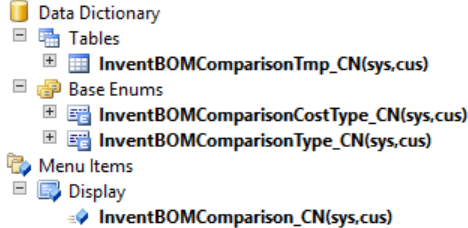
In this case, these four objects need to have the CountryCode property cleared.


In order to limit the performance impact I enable only the necessary configuration keys. So whenever a specific report or functionality from another country could be useful, I prefer to remove the country code on those objects to allow them to be used by all countries. This is a minor modification that does not take long, however still requires functional testing.
In this case, these four objects need to have the CountryCode property cleared.
Monday, July 3, 2017
Unable to Configure Report for PrecisionForms - Record Already Exists
Symptom:
Cannot create a record in Delivery destinations (BT_DPA_AOT_ReportDestinations). AOT object ID: 13, 2.
The record already exists.

Solution:
The unique index for the BottomLine tables is RecID. Run the following SQL statement on your AX database. Replace DATABASE with the name of your AX database.
IF OBJECT_ID('DATABASE.dbo.[BT_DPA_AOT_ReportDestinations]', 'U') IS NOT NULL
BEGIN
UPDATE SystemSequences
SET NEXTVAL = 1 + (SELECT MAX(RecID) FROM BT_DPA_AOT_ReportDestinations)
WHERE TABID = (SELECT [TABLEID] FROM [SQLDICTIONARY] WHERE [Name] = 'BT_DPA_AOT_ReportDestinations' AND [FieldID]=0)
END
IF OBJECT_ID('DATABASE.dbo.[BT_DPA_AOT_Reports]', 'U') IS NOT NULL
BEGIN
UPDATE SystemSequences
SET NEXTVAL = 1 + (SELECT MAX(RecID) FROM BT_DPA_AOT_Reports)
WHERE TABID = (SELECT [TABLEID] FROM [SQLDICTIONARY] WHERE [Name] = 'BT_DPA_AOT_Reports' AND [FieldID]=0)
END
IF OBJECT_ID('DATABASE.dbo.[BT_DPA_AOT_ReportProcesses]', 'U') IS NOT NULL
BEGIN
UPDATE SystemSequences
SET NEXTVAL = 1 + (SELECT MAX(RecID) FROM BT_DPA_AOT_ReportProcesses)
WHERE TABID = (SELECT [TABLEID] FROM [SQLDICTIONARY] WHERE [Name] = 'BT_DPA_AOT_ReportProcesses' AND [FieldID]=0)
END
Friday, June 2, 2017
Export AX Ledger Transactions via SQL
This SQL serves as a starting point to include any number of financial dimensions.
SELECT GENERALJOURNALENTRY.SUBLEDGERVOUCHER as Voucher,
DIMENSIONATTRIBUTEVALUECOMBINATION.DisplayValue as [Account+Dims],
MAINACCOUNT.MainAccountID as [Account],
DIMENSIONATTRIBUTELEVELVALUE.DisplayValue as [Dept],
GENERALJOURNALACCOUNTENTRY.ACCOUNTINGCURRENCYAMOUNT as AmountMST,
GENERALJOURNALACCOUNTENTRY.TRANSACTIONCURRENCYAMOUNT as AmountCur,
GENERALJOURNALACCOUNTENTRY.TRANSACTIONCURRENCYCODE as CurrencyCode
FROM DynamicsAX2012.GENERALJOURNALENTRY
INNER JOIN DynamicsAX2012.GENERALJOURNALACCOUNTENTRY
ON GENERALJOURNALENTRY.RECID = GENERALJOURNALACCOUNTENTRY.GENERALJOURNALENTRY
INNER JOIN DynamicsAX2012.DIMENSIONATTRIBUTEVALUECOMBINATION
ON DIMENSIONATTRIBUTEVALUECOMBINATION.RECID = GENERALJOURNALACCOUNTENTRY.LEDGERDIMENSION
INNER JOIN DynamicsAX2012.DIMENSIONATTRIBUTEVALUEGROUPCOMBINATION
ON DIMENSIONATTRIBUTEVALUEGROUPCOMBINATION.DIMENSIONATTRIBUTEVALUECOMBINATION = DIMENSIONATTRIBUTEVALUECOMBINATION.RECID
INNER JOIN DynamicsAX2012.DIMENSIONATTRIBUTELEVELVALUE
ON DIMENSIONATTRIBUTELEVELVALUE.DIMENSIONATTRIBUTEVALUEGROUP = DIMENSIONATTRIBUTEVALUEGROUPCOMBINATION.DIMENSIONATTRIBUTEVALUEGROUP
and DIMENSIONATTRIBUTELEVELVALUE.DimensionAttributeValue = 5637146881 -- s/b a lookup to DimensionAttribute
INNER JOIN DynamicsAX2012.MAINACCOUNT
ON MAINACCOUNT.RECID = DIMENSIONATTRIBUTEVALUECOMBINATION.MAINACCOUNT
WHERE MAINACCOUNT.MainAccountID LIKE '6%'
AND DIMENSIONATTRIBUTELEVELVALUE.DISPLAYVALUE = '600'
SELECT GENERALJOURNALENTRY.SUBLEDGERVOUCHER as Voucher,
DIMENSIONATTRIBUTEVALUECOMBINATION.DisplayValue as [Account+Dims],
MAINACCOUNT.MainAccountID as [Account],
DIMENSIONATTRIBUTELEVELVALUE.DisplayValue as [Dept],
GENERALJOURNALACCOUNTENTRY.ACCOUNTINGCURRENCYAMOUNT as AmountMST,
GENERALJOURNALACCOUNTENTRY.TRANSACTIONCURRENCYAMOUNT as AmountCur,
GENERALJOURNALACCOUNTENTRY.TRANSACTIONCURRENCYCODE as CurrencyCode
FROM DynamicsAX2012.GENERALJOURNALENTRY
INNER JOIN DynamicsAX2012.GENERALJOURNALACCOUNTENTRY
ON GENERALJOURNALENTRY.RECID = GENERALJOURNALACCOUNTENTRY.GENERALJOURNALENTRY
INNER JOIN DynamicsAX2012.DIMENSIONATTRIBUTEVALUECOMBINATION
ON DIMENSIONATTRIBUTEVALUECOMBINATION.RECID = GENERALJOURNALACCOUNTENTRY.LEDGERDIMENSION
INNER JOIN DynamicsAX2012.DIMENSIONATTRIBUTEVALUEGROUPCOMBINATION
ON DIMENSIONATTRIBUTEVALUEGROUPCOMBINATION.DIMENSIONATTRIBUTEVALUECOMBINATION = DIMENSIONATTRIBUTEVALUECOMBINATION.RECID
INNER JOIN DynamicsAX2012.DIMENSIONATTRIBUTELEVELVALUE
ON DIMENSIONATTRIBUTELEVELVALUE.DIMENSIONATTRIBUTEVALUEGROUP = DIMENSIONATTRIBUTEVALUEGROUPCOMBINATION.DIMENSIONATTRIBUTEVALUEGROUP
and DIMENSIONATTRIBUTELEVELVALUE.DimensionAttributeValue = 5637146881 -- s/b a lookup to DimensionAttribute
INNER JOIN DynamicsAX2012.MAINACCOUNT
ON MAINACCOUNT.RECID = DIMENSIONATTRIBUTEVALUECOMBINATION.MAINACCOUNT
WHERE MAINACCOUNT.MainAccountID LIKE '6%'
AND DIMENSIONATTRIBUTELEVELVALUE.DISPLAYVALUE = '600'
Subscribe to:
Posts (Atom)